OKR Tracker Widget – team goals transparent in the intranet
Make goals visible – every week, not every quarter
OKR Tracker for Staffbase: quarterly OKRs with progress bars, status color code and owner – live from a Data Table.
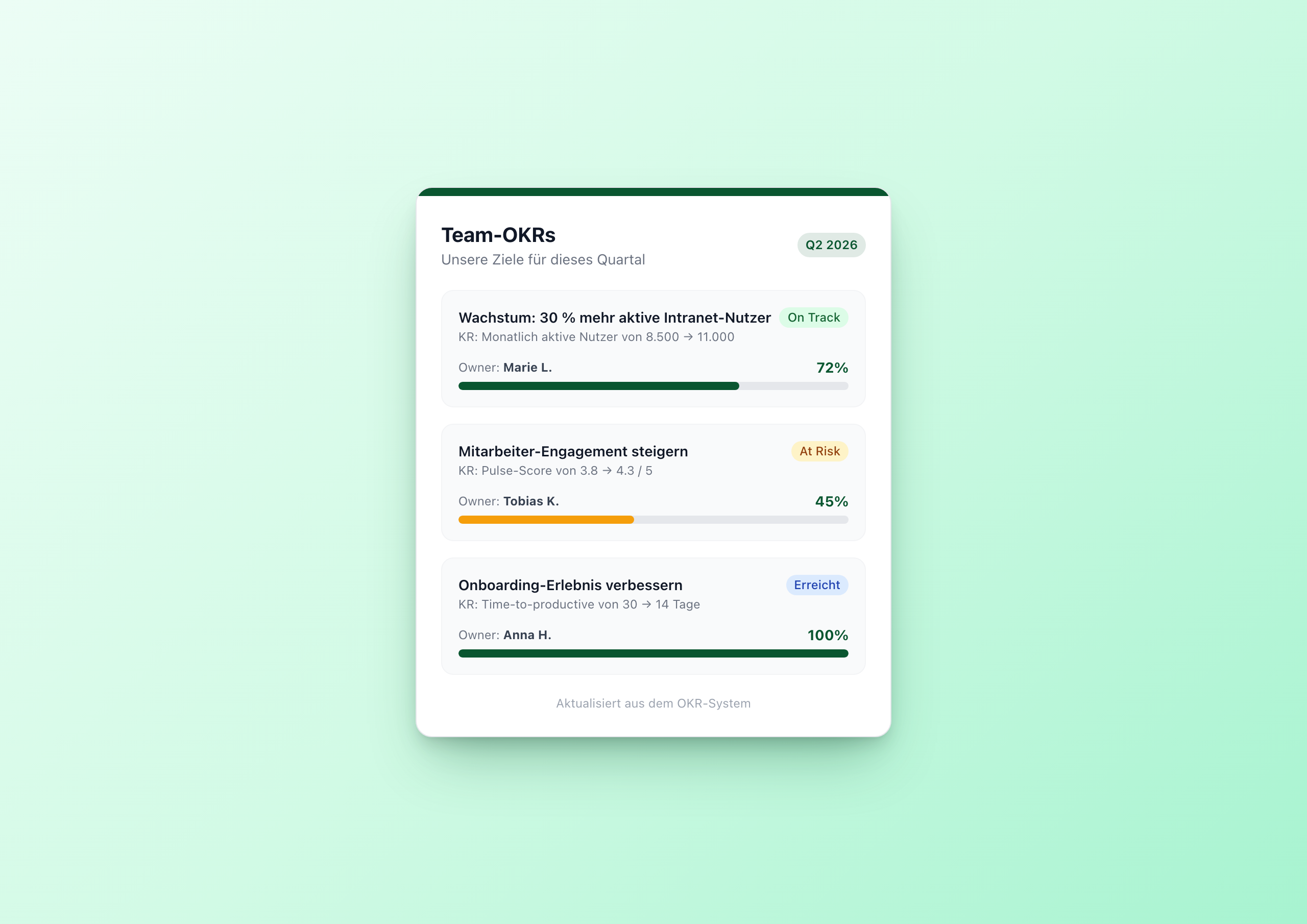
Overview
The OKR Tracker Widget turns team goals into a daily touchpoint instead of a quarterly PowerPoint. Each OKR with progress bar, status color code and owner – live from a Data Table the strategy team updates weekly.
Why this widget?
Most OKR programs suffer from visibility gaps. The strategy team knows the goals, management knows the goals – but the individual team member only sees them at the quarterly kickoff and forgets them two weeks later. Whoever doesn’t know what the team is working on can’t tell where their contribution fits.
The OKR Tracker Widget solves this with a single means: the OKRs are on the intranet homepage. Not in the strategy wiki, not in the PowerPoint, not in a separate OKR tool – but where employees stop by every morning anyway.
Architecture
Like Kudos Wall and Idea Box before it, the persistence layer is a Data Table. Here with six columns:
| Column | Type | Meaning |
|---|---|---|
objective | text | The goal (e.g. “30% more active intranet users”) |
key_result | text | The key result (e.g. “MAU from 8,500 → 11,000”) |
owner | text | Who is responsible for the OKR |
progress | number | 0–100 |
status | text | on_track / at_risk / off_track / done |
submitted_at | date | Last update |
Unlike Kudos and Idea Box, there is no submit form in the widget. OKRs are maintained by the strategy team directly in the Data Table – the right workflow for strategic data that isn’t submitted by random employees.
Key features
1. Progress bar with dynamic color
The bar color changes with the status: green for on_track, amber for at_risk, red for off_track, accent color for done. That happens directly in the inline style:
1<div class="h-full rounded-full" style="width: {{this.progress}}%;
2  background-color: {{#if (eq this.status 'off_track')}}#dc2626{{else}}{{#if (eq this.status 'at_risk')}}#f59e0b{{else}}{{../settings.accent_color}}{{/if}}{{/if}};">
3</div>
Hard nested Handlebars, but it works – and the effect is instantly readable: red bar = needs attention.
2. Four statuses, four badge colors
On Track (green), At Risk (amber), Off Track (red), Done (blue). Same as Idea Box: four eq helpers, four Tailwind class sets, one concat for the translation key.
3. Owner visible
Who is responsible is right under the key result. That creates clarity in the team and turns the tracker into an accountability lever, not just a reporting tool.
4. Quarter badge
Top right, a colored badge with the current quarter (“Q2 2026”). Editor setting, because the quarter only changes four times a year.
Configuration
7 settings, all editor-time:
- tableGuid – required
- Title, subtitle, quarter label
- maxItems – slider 3–12
- accent_color – color picker
- theme – light or dark
Technical
- Sorting:
sortBy=progress&sortDir=desc– the most ambitious OKRs first - Limit: 50 rows per fetch, slider shows 3–12 of them
- Performance: < 500 ms initial render
- Multilingual: German and English out of the box
Connect External Systems
The OKR Tracker works out of the box with the built-in Data Table — but you can also sync OKR data directly from your existing goal management tool.
- Lattice – Automatically mirror OKRs and progress from Lattice to the intranet
- 15Five – Display quarterly goals and check-in data from 15Five in real time
- Perdoo – Visualize OKR progress from Perdoo directly on the homepage
- Betterworks – Import team goals and alignment data from Betterworks
- Jira – Display epics and their progress as OKRs in the intranet
FAQ
Can employees edit OKRs?
No – that’s a strategy team task. The widget intentionally has no submit form. If you’re looking for employee suggestions, use the Idea Box .
How does progress get into the table?
Three ways: (1) manually by the OKR owner weekly, (2) via a sync script from an external OKR tool like Lattice or Workday, (3) via the Data Table API directly from a BI system.
Related widgets
- Charts & Dashboards – for KPIs with charts
- Kudos Wall – to recognize OKR successes immediately
- Idea Box – for employee ideas with status workflow
Use Cases
Quarterly transparency
Team OKRs on the intranet homepage – updated every week
Strategy rollout
Company OKRs visible to all, not just management
Team performance
Per team a page with their own goals
Key Features
- Progress bar per OKR0–100% per key result, bar color changes with status
- 4 statuses as colored badgesOn Track green, At Risk amber, Off Track red, Done blue – bar color follows the status
- Owner visibleWho is responsible? Every team member sees it instantly
- Quarter badgeTop right, with accent color – matches the current reporting cycle
- Data Table backendOKRs as persistent rows, editor maintains status and progress in the table
Questions about the OKR Tracker Widget – team goals transparent in the intranet?
Our team is happy to help you personally