Document Library
Provide documents centrally in the intranet
Centrally display content from Microsoft SharePoint or Google Drive in the intranet with folder structure and permissions
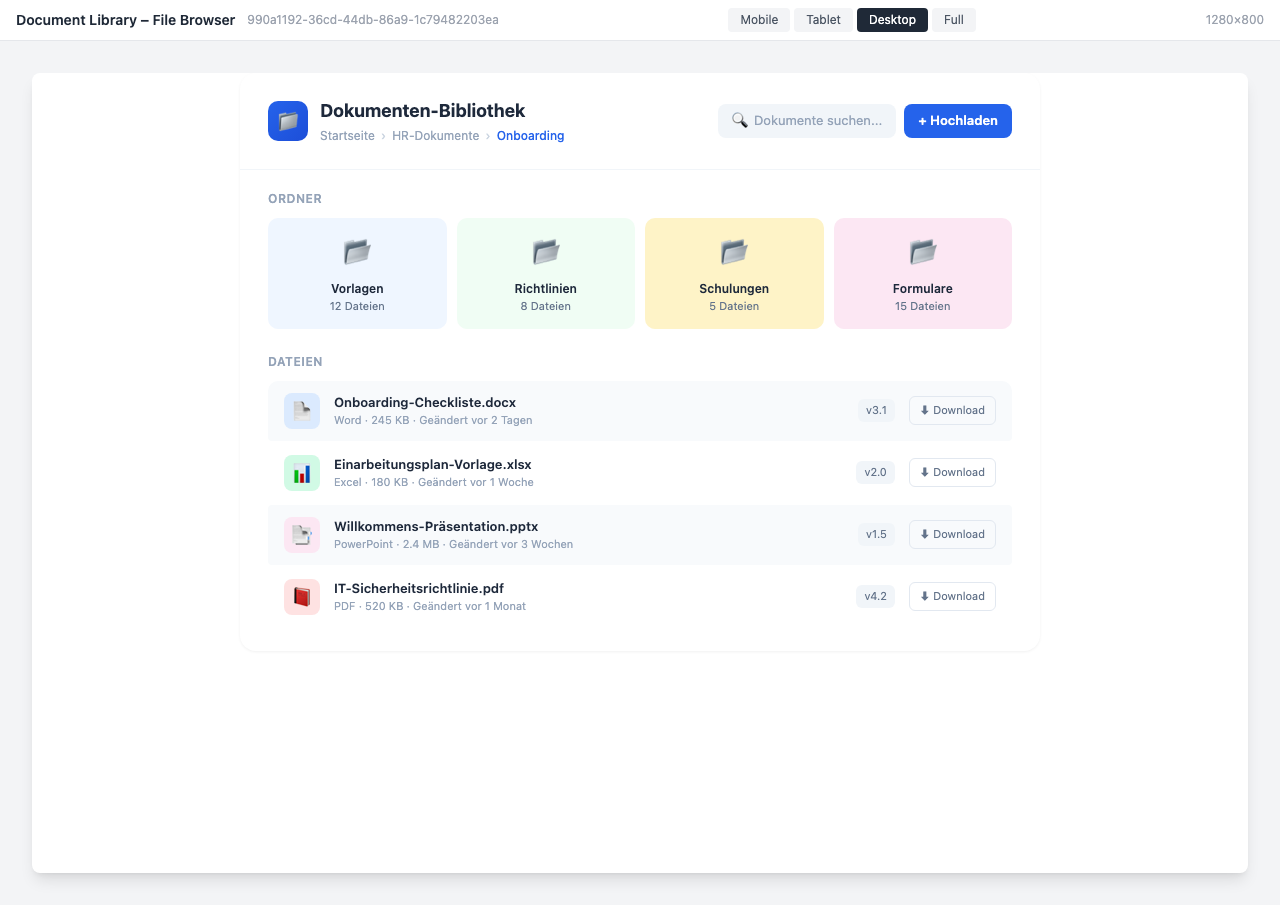
Overview
The Document Library brings files from Microsoft SharePoint and Google Drive directly into your Staffbase intranet. With familiar folder structure, automatic permission adoption, and various display options, employees find their documents quickly and easily.
Why This Widget?
Documents are scattered across various systems — SharePoint, Google Drive, local drives. The Document Library bundles everything in one place:
- ✅ Central: All documents bundled in the intranet
- ✅ Secure: Permissions are automatically adopted
- ✅ Up-to-date: Live synchronization with the source
- ✅ Familiar: Folder structure like a file manager
Key Features
1. Navigable Folder Structure
Employees navigate through a familiar folder structure:
- Breadcrumb navigation for quick orientation
- Color-coded folder categories
- File counter per folder
- Search function across all files
2. SharePoint & Google Drive Integration
Native connection to the most popular cloud storage:
- Microsoft SharePoint Online
- Google Drive / Google Workspace
- Automatic synchronization
- Connection status at a glance
3. Automatic Permissions
Each employee sees only what they are authorized to see:
- Permissions adopted from SharePoint/Google Drive
- No duplicate rights management needed
- GDPR compliant
- Audit trail for compliance
4. Various Views
Choose the optimal display:
- File Browser: Classic folder and file view
- Table View: SharePoint-like table view
- Tile View: Clear document tiles
- List View: Compact for sidebars
Typical Use Cases
📂 HR Document Portal
Centrally provide onboarding checklists, leave requests, and policies.
📋 Company Policies
IT security policies, brand guidelines, and compliance documents accessible to all.
📁 Project Documentation
Make project-related files available directly in the intranet channel.
📊 Reports & Templates
Provide current reports and templates in a central location.
Integration & Setup
The widget can be set up in under 5 minutes:
- Select widget from the gallery
- Connect SharePoint or Google Drive
- Select folders to display
- Choose display variant and publish
Permissions are automatically synchronized.
Design Options
- File Browser: Classic with folders, files, and breadcrumbs
- SharePoint Table: Table view with columns for date, author, and size
- Dark Mode: Modern design for dark themes
- Compact Sidebar: Space-saving sidebar with recently modified files
- Tile Grid: Clear tiles for quick access
Frequently Asked Questions
Which cloud storage is supported?
Microsoft SharePoint Online and Google Drive / Google Workspace. Additional sources upon request.
Are permissions automatically adopted?
Yes, access rights from SharePoint or Google Drive are automatically synchronized. Each user sees only authorized documents.
Can I hide certain folders?
Yes, you choose exactly which folders and files are displayed in the widget.
How current are the displayed documents?
Documents are synchronized in real-time. Changes in SharePoint or Google Drive appear immediately in the widget.
Best Practices
- Folder Structure: Use clear folder names and logical hierarchy
- Check Permissions: Test access rights before publishing
- Prominent Placement: Place on the homepage or in a dedicated channel
- Versioning: Use filenames with version indicators
Screenshots
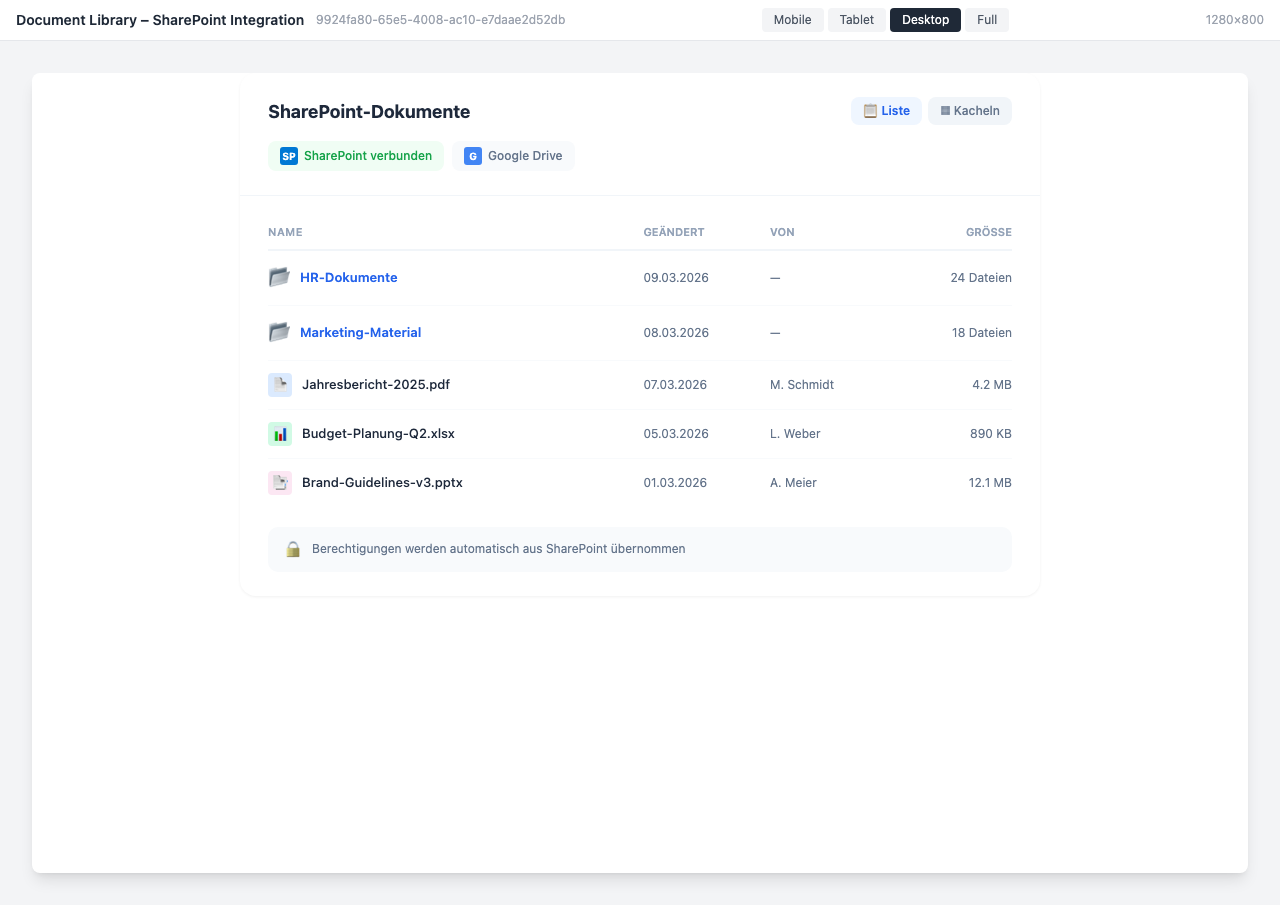
SharePoint integration with table view
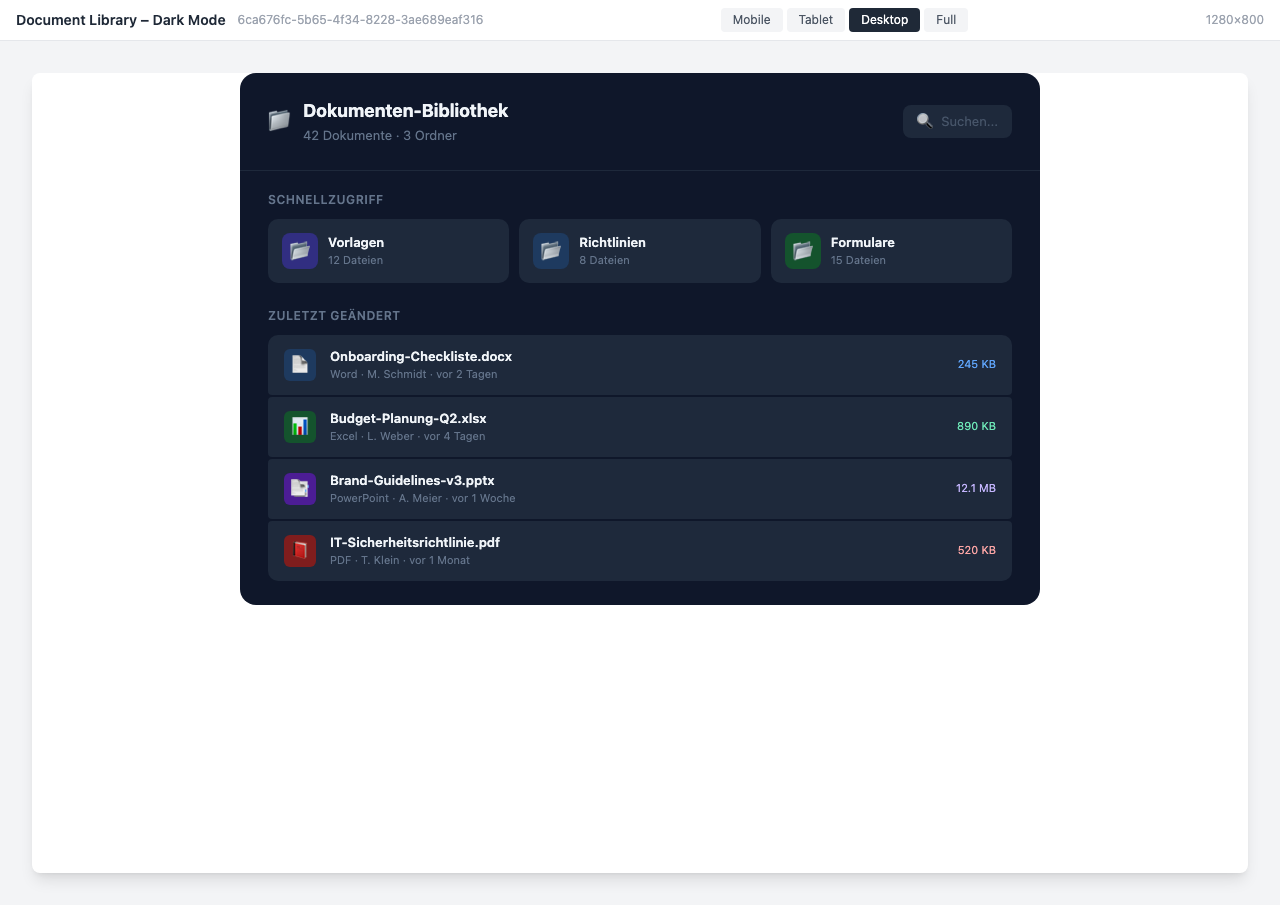
Dark mode variant
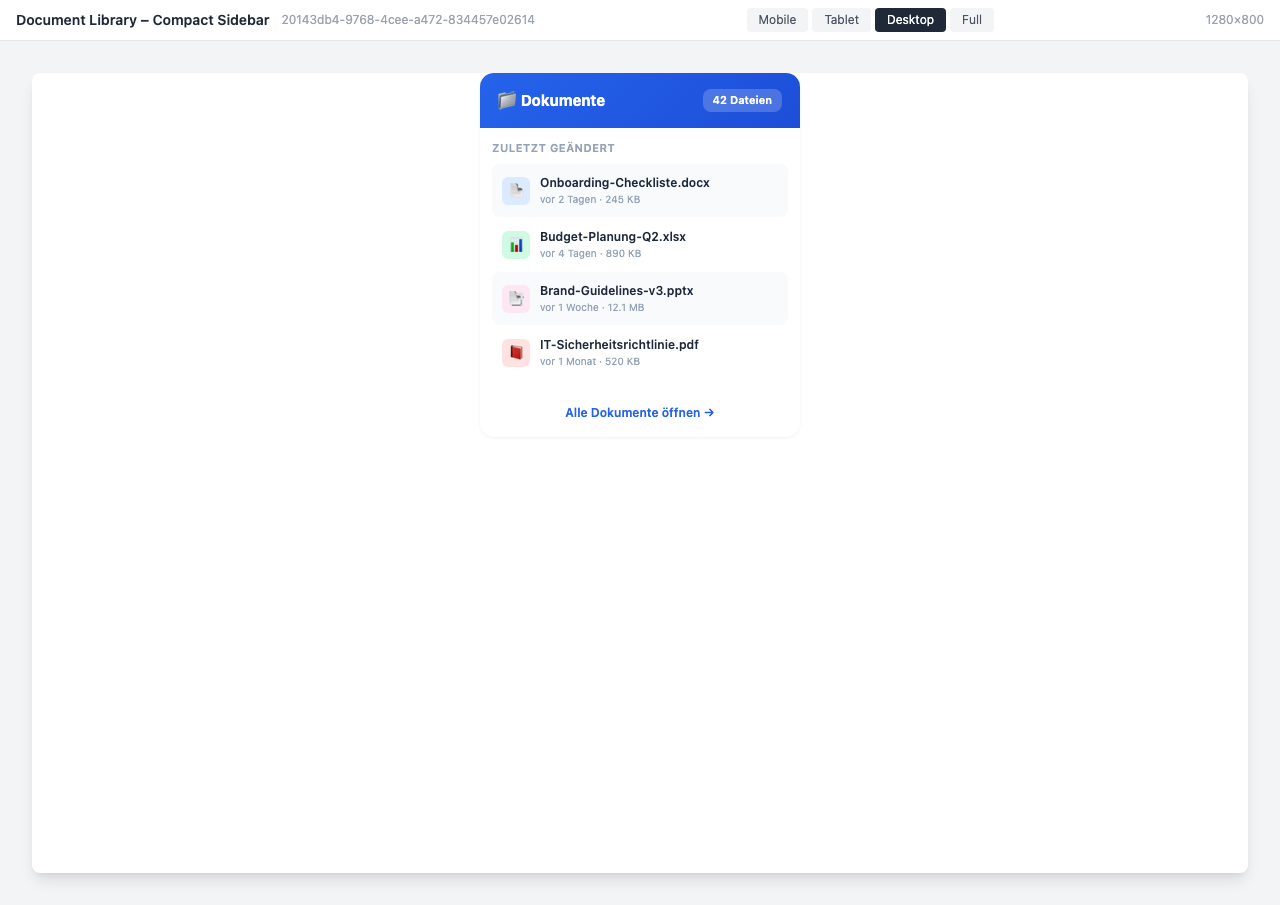
Compact sidebar view
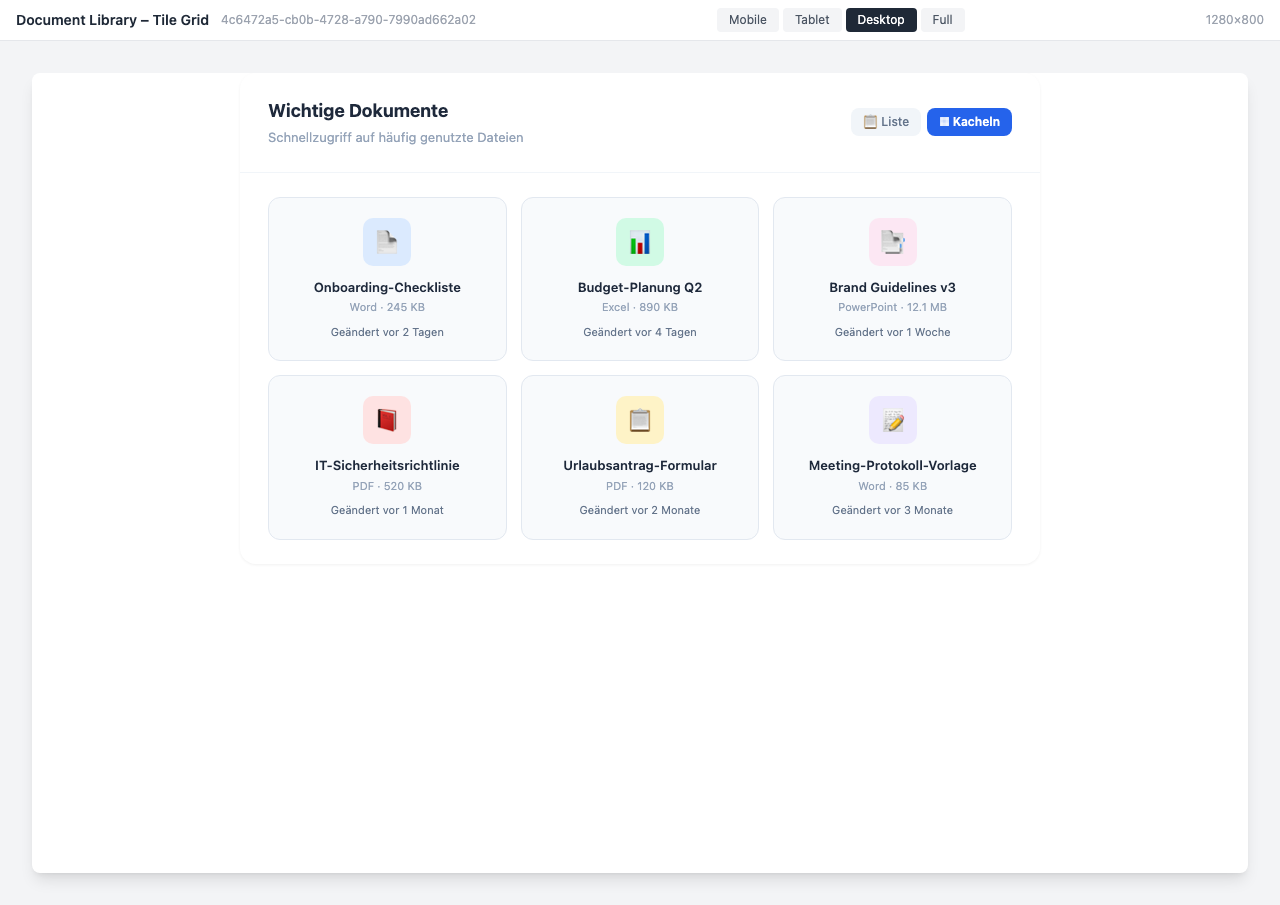
Tile view for quick access
Use Cases
HR Documents
Centrally provide onboarding checklists, policies, and forms
Company Policies
Current policies and guidelines for all employees
Project Documents
Project-related files available directly in the intranet
Key Features
- Folder StructureNavigable folders like a file manager
- PermissionsAutomatic adoption from SharePoint/Google Drive
- SharePoint & Google DriveNative integration with Microsoft and Google
- Search & FilterFull-text search and file type filters