This guide explains how to use the Prediction Game day to day. It has two parts: Part A is for every employee who plays along. Part B is for customer admins who manage the game directly inside the widget.
For a marketing overview of the feature set, see the Prediction Game widget page . This guide describes the concrete steps.
Good to know: There is no separate login. You are already signed in through Staffbase, and the widget picks up your identity automatically. Setup, activation and the match data for official tournaments are handled by JASP for you (see What JASP takes care of ).
The screenshots show the German interface; the layout is identical in English.
Contents
- Part A: For employees — Opening , Predicting a match , Your predictions , Bonus questions , Leaderboard , Points
- Part B: For customer admins — Admin mode , Bonus questions , Scoring rules , Results , History , Own tournament
- What JASP takes care of
Part A: For employees
Opening the Prediction Game
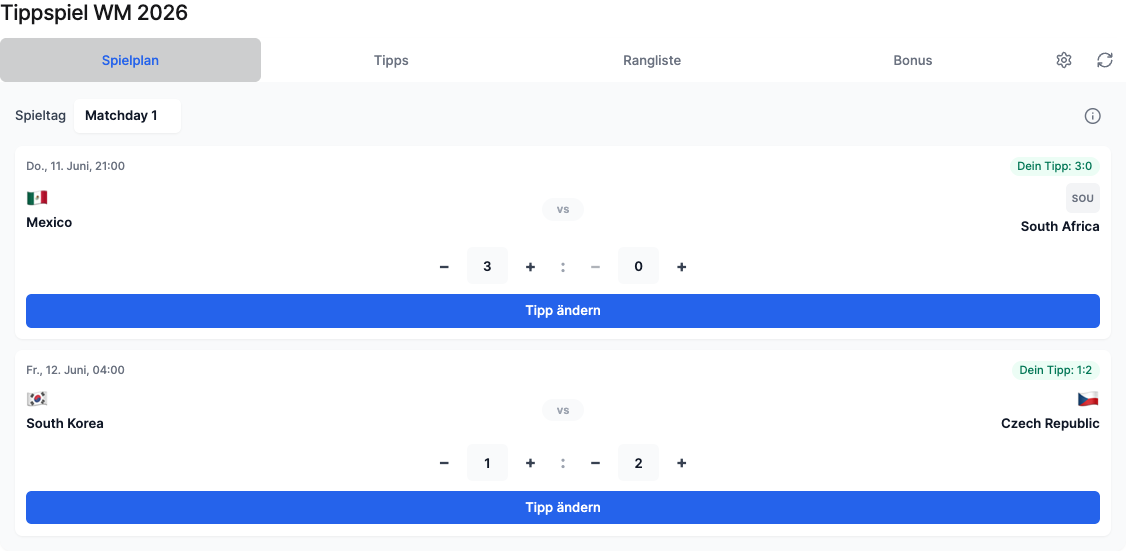
In Staffbase, open the page where your Prediction Game is embedded. The widget shows the tournament name at the top and four tabs:
- Schedule: all matches of the tournament
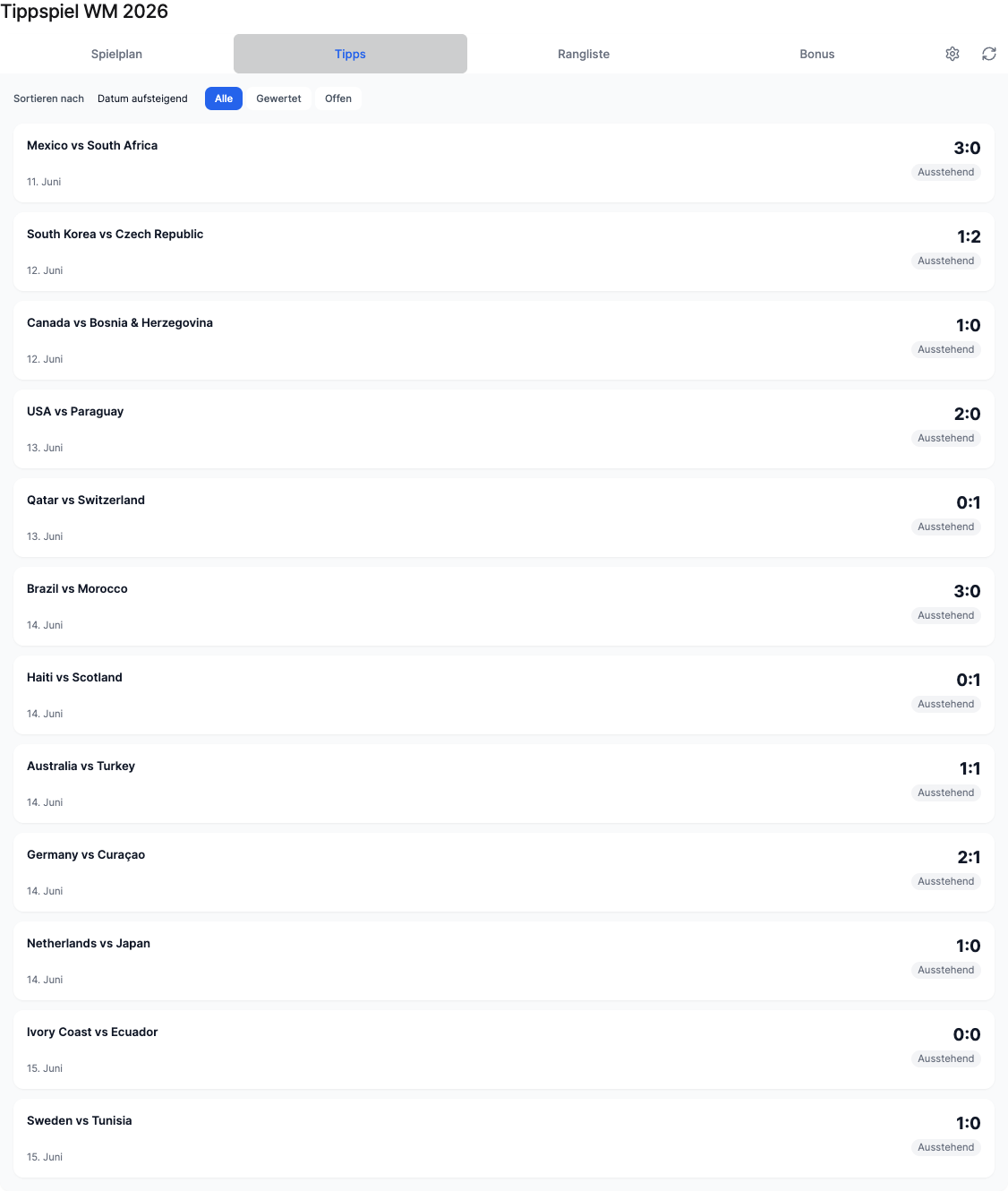
- Predictions: an overview of your own predictions
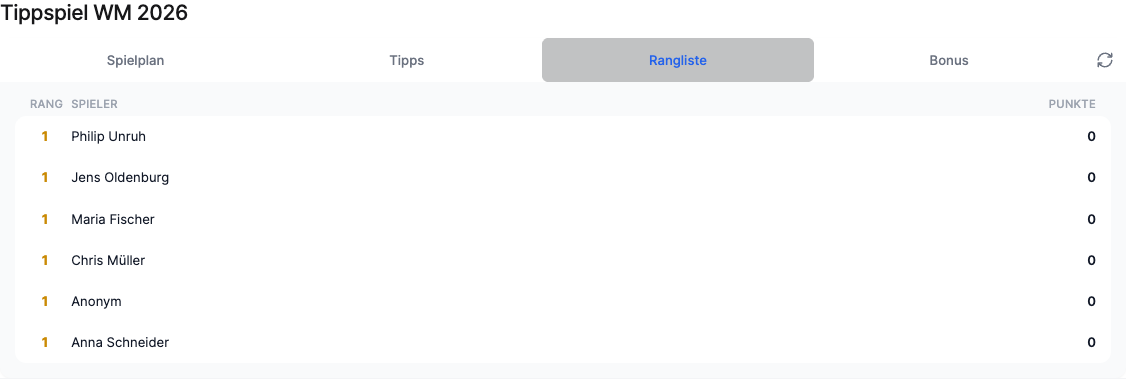
- Leaderboard: who has how many points
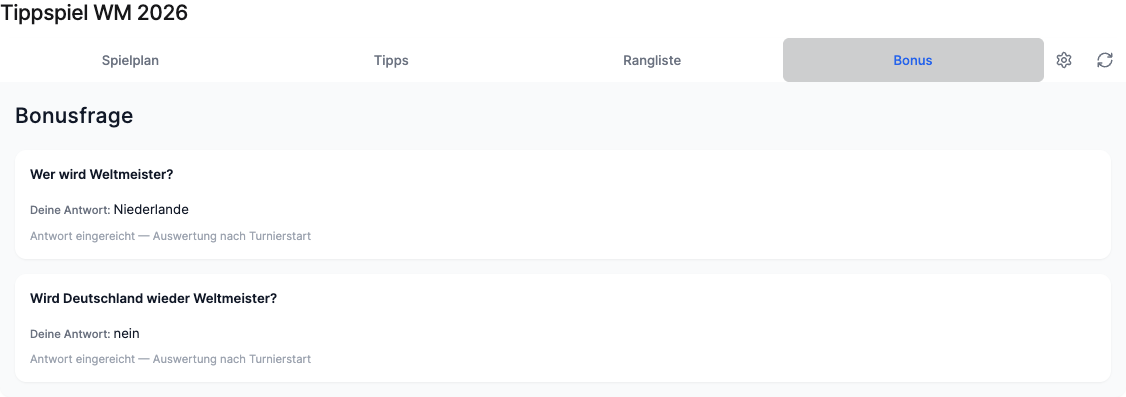
- Bonus: tournament-wide bonus questions
Predicting a match
- Go to the Schedule tab.
- Use the Matchday selector at the top to pick the matchday you want.
- For a match, set your predicted score for home and away using the plus and minus buttons.
- Click Submit prediction.
Your prediction then appears on the match as “Your prediction: X:Y”. As long as the match has not kicked off, you can change it as often as you like and save again. Once the match kicks off, the widget locks the input. Predicting afterwards is no longer possible.

Your predictions at a glance
In the Predictions tab you see every match you have already predicted. Use Sort by to choose:
- Date ascending (default): the next upcoming match is at the top
- Date descending: the latest match is at the top
- By points: sorted by points earned
Use the All, Scored and Open filters to show only certain predictions.
Answering bonus questions
In the Bonus tab you find tournament-wide questions, for example “Who will win the World Cup?”. Pick your answer and click Submit answer. One answer per question is possible, and only until that question’s deadline. Points for correct bonus answers count towards the normal leaderboard.
Reading the leaderboard
In the Leaderboard tab you see all participants with rank, name and points, sorted by points. This lets you see at any time how you compare to your colleagues.
How points are awarded
Points are awarded automatically as soon as a match result is final. The default rules:
| Accuracy of your prediction | Example | Points |
|---|---|---|
| Exact result | Prediction 2:1, result 2:1 | 8 |
| Correct goal difference | Prediction 2:1, result 3:2 | 6 |
| Correct winner / tendency | Prediction 2:1, result 4:0 | 4 |
| Wrong | Prediction 2:1, result 0:3 | 0 |
| Bonus question correct | depends on the question | e.g. 10 |
In the knockout phase, prediction points are multiplied by the knockout factor (default: 2). Your admin sets the exact values per tournament (see Part B); the table above shows the default values.
Part B: For customer admins (in-widget self-service)
If you have admin rights for the Prediction Game in Staffbase, you can manage the game directly inside the widget. You do not need any additional software and no access to JASP systems.
Scope: This part describes only the management you have as a customer inside the widget. The technical setup (activation, connection) is handled by JASP (see What JASP takes care of ).
Opening admin mode
As an admin, you find the gear icon Open admin mode at the top right of the widget. Four management tabs then appear: Bonus questions, Points, Results and History. Use Leave admin mode to return to the normal view.
Managing bonus questions
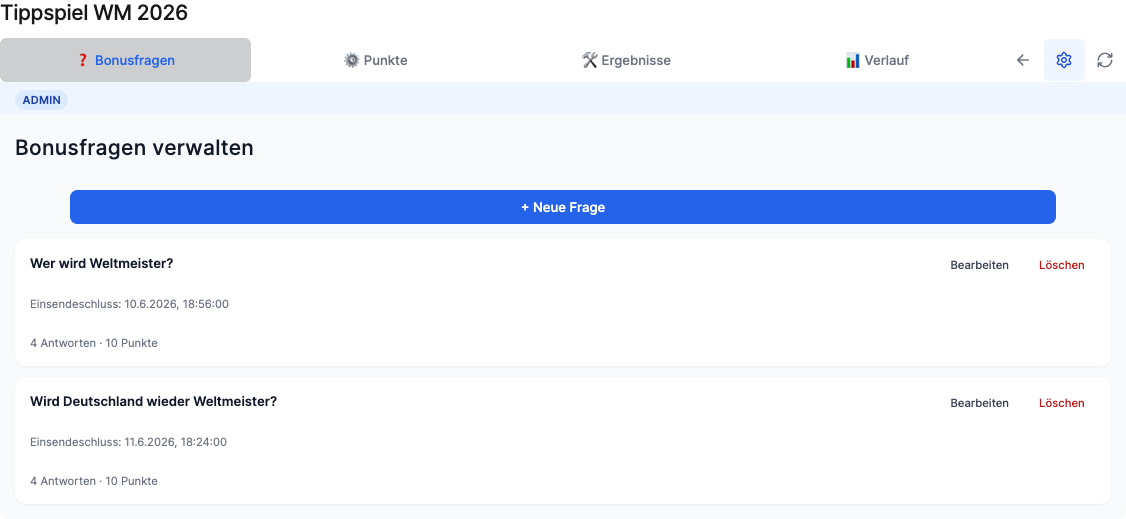
In the Bonus questions tab:
- Click + New question, or Edit on an existing question.
- Define:
- Question: the question text (e.g. “Who will win the World Cup?”)
- Answer type: Single choice (fixed options), Free text or Number
- Answer options: for single choice, the individual options (add with + Add option, remove with the × icon)
- Points (1–50): value of the question
- Deadline: date and time until which answers are accepted
- Click Create question or Save changes.
Use Delete to remove a question. Edited questions appear for employees after the next reload of the widget.
Adjusting scoring rules
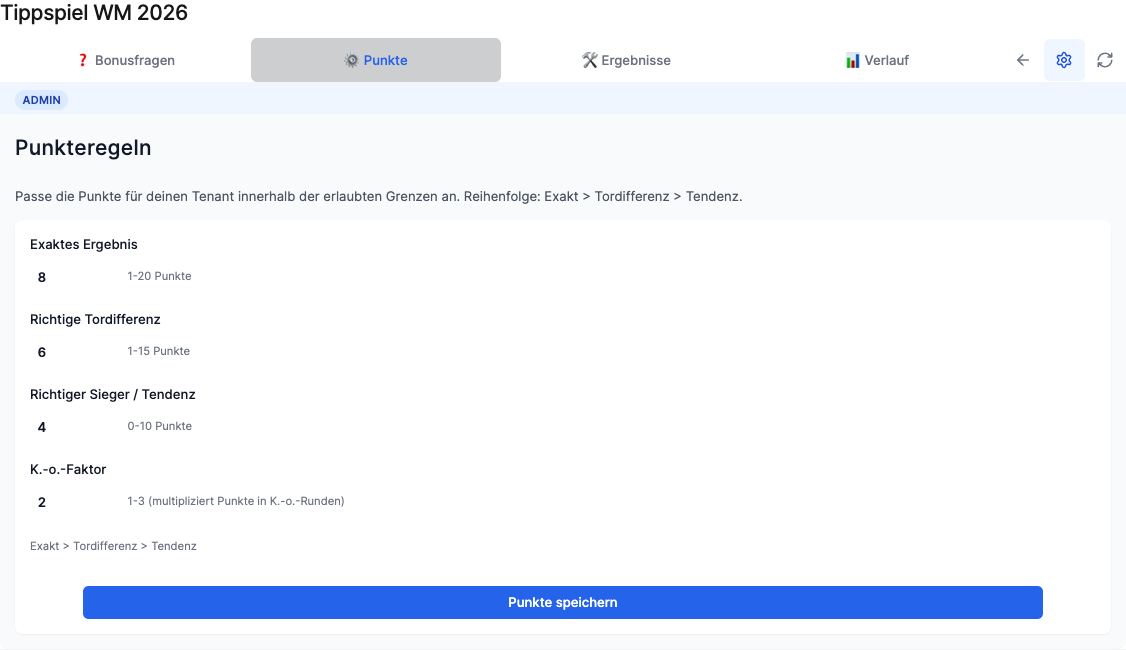
In the Points tab you set how many points a prediction is worth:
- Exact result (default 8)
- Correct goal difference (default 6)
- Correct winner / tendency (default 4)
- Knockout factor (multiplier in the knockout phase, default 2)
Click Save points. Sensible limits apply, and the order stays logical: an exact result is worth more than the correct goal difference, which is worth more than the correct tendency. The points per bonus question are not set here, but directly on the respective bonus question.
Correcting results
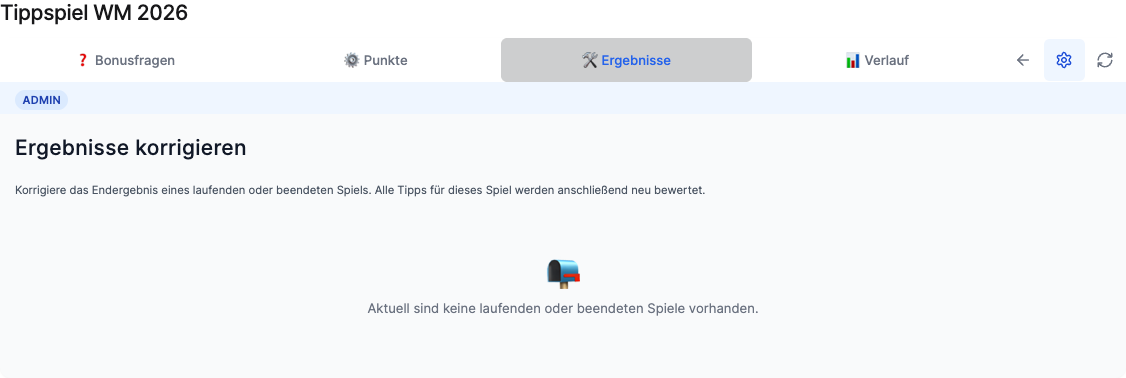
In the Results tab you can correct the final result of a live or finished match. All predictions for that match are then re-scored automatically and the leaderboard updates. This only affects your tournament, not other customers.
As long as no matches are live or finished (for example before the tournament starts), the tab shows the note “There are currently no live or finished matches.”
History
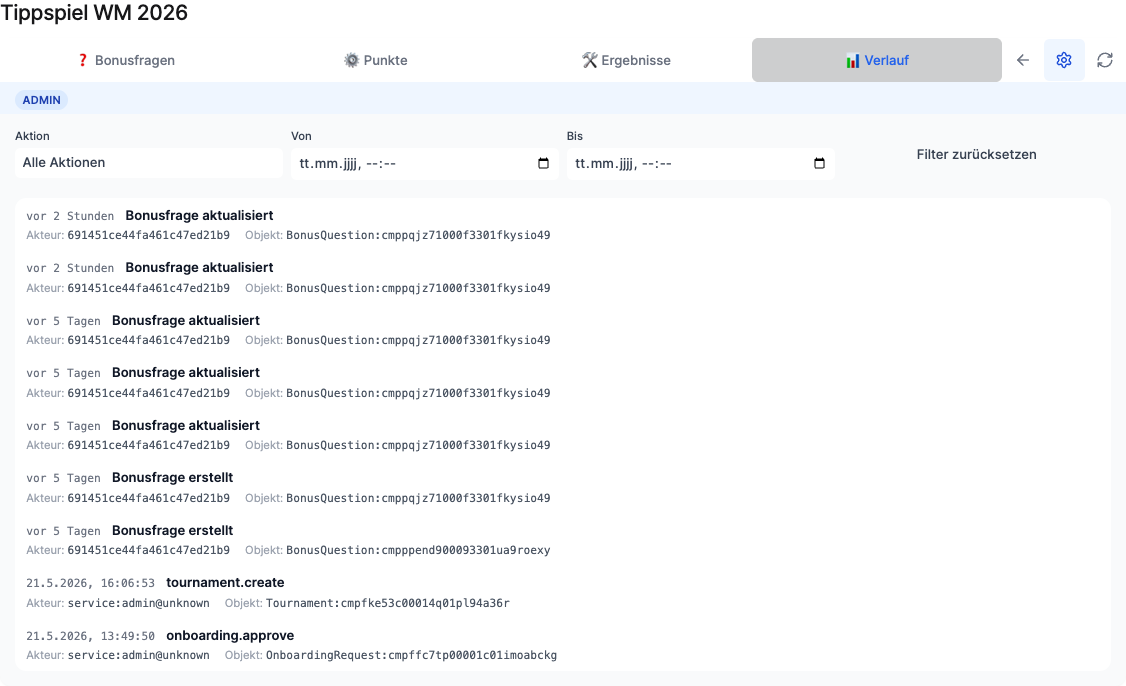
In the History tab you see the traceable history of changes to your tournament: for each entry the timestamp, the action (for example “Bonus question created” or “Bonus question updated”), the actor and the affected object. Use Reset filter to reset the list. Click an entry to see the details.
Your own tournament (optional)
In addition to the official tournaments (for example World Cup, Euros or Bundesliga), you can run your own company tournament with its own schedule. Just reach out to us and we will set it up together with you.
What JASP takes care of
So you can focus on predicting and managing, JASP handles the technical side:
- Activation of the widget in your Widget Builder account
- Backend and API address: these are stored in the widget. You do not configure any connection yourself.
- Schedules of official tournaments: teams, schedules and kickoff times are imported automatically and kept up to date. Team and country names come from the official data source and appear in English (e.g. “Mexico”, “Czech Republic”). This is determined by the data interface and is outside your or JASP’s control.
- Final results: the automatic result sync is being prepared. As long as it is not yet active for your tournament, your admin enters the final results via the “Results” tab. Scoring then runs automatically.
On the customer side, you decide whether the widget is embedded, on which page, and for which audience (all employees or a specific Staffbase group).