
What is a Staffbase plugin?
A Staffbase plugin is a web application that Staffbase embeds as a page of its own, in an iframe and with the user signed in (Staffbase Developer Portal (opens in a new tab) , retrieved 23 Nov 2026). The Widget Builder plugin uses this: you pick a widget, and it fills a Staffbase page. You don’t run an application, hosting or sign-in of your own for it.
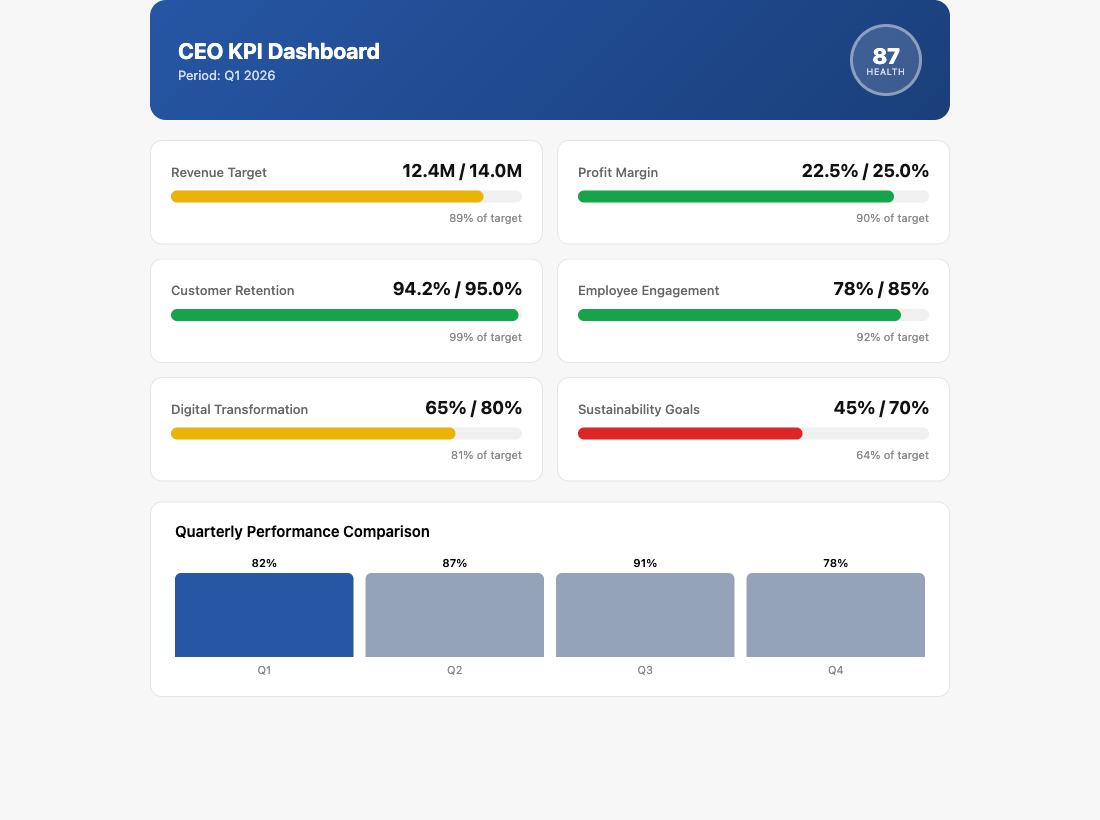
Widget or plugin: which one fits your page?
| Custom widget | Plugin | |
|---|---|---|
| Where it shows | As a block on a page, next to text and images | As its own full page |
| Typical for | Lunch menu on the home page, birthdays, short updates | Dashboard, weekly lunch menu, shift schedule, content that needs room |
| Which widgets | Your active widgets and the standard widgets enabled for your account | The same, nothing to rebuild |
You decide for each page. The same widget can be a small block on the home page and use the available space on a page of its own.
What you get
- No web application of your own to run. A Staffbase plugin that you build yourself comes with its own hosting and sign-in. With Widget Builder, you do not need that separate plugin project.
- Use the Staffbase sign-in. Staffbase signs the user in. The plugin checks the sign-in that Staffbase sends along.
- Choose settings for each page. If a widget has settings, you set them for each page. The same widget can show two variants on two pages.
- Keep selection with editors. Only people with the Staffbase editor role choose the widget and change its settings.
- Keep your widgets and data. Removing the plugin from a page removes only that page’s selection and settings. Your widgets and data tables stay.
What teams use the plugin for
- KPIs with more room: a dashboard with charts at full width instead of a narrow column.
- The full week at a glance: the lunch menu on its own page, with room for the whole week.
- Your own HTML as a full page: a custom widget with your layout, showing data from an API or a data table.
- Large overviews: content that needs more room, such as a shift schedule .
How the plugin gets onto a page
- Set it up once: we at JASP, the company behind the Widget Builder, set up the “JASP Widget Builder” plugin for your instance together with your Staffbase administrator.
- Add the plugin: in Staffbase Studio, add the plugin to a page like any other element and save.
- Pick a widget: choose one of your active widgets or a standard widget enabled for your account.
- Configure and publish: if the widget has settings, set them for this page. Then publish the page.
The steps with screenshots are in the Full Page Plugin guide (opens in a new tab) .
Build your own or use a ready one?
The Widget Builder plugin fits when you want to show a widget on its own Staffbase page. A self-built Staffbase plugin fits better when you need a whole application with its own navigation and you have a development team. The options are compared in Create a Staffbase Custom Widget: SDK or Widget Builder? . Where the data can come from is on the integrations page.
Frequently asked questions
What is the difference between a Staffbase widget and a Staffbase plugin?
A widget is a building block on a page, next to other content. A plugin fills a page of its own. With the Widget Builder you use the same active widgets for both.
How do we get the plugin into our Staffbase?
The JASP Widget Builder plugin has to be made available for your Staffbase instance. We set this up once with your Staffbase administrator. After that, editors add it to a page in Staffbase Studio like any other element.
Do I need to code?
Not for standard widgets. You write your own widgets in HTML or let the AI editor build them, if JASP enables it for your account.
Does the plugin page work in the Staffbase app?
The Widget Builder source code detects when it runs inside the Staffbase app. We have not tested it on real devices yet. The current state is on the compatibility page.
What does the plugin cost?
Plans and prices are on the pricing page (net, plus VAT). We clarify with you during setup how the plugin fits your plan.
Next step
Want to show a widget on its own Staffbase page? Get in touch and we’ll set up the plugin with you. All widgets are in the widget gallery .