Your First Widget in 5 Minutes — With AI Instead of Code

You Want to Customize Your Intranet. But Who Builds It?
Sound familiar? You have an idea for your intranet — a quick links widget, a lunch menu, a birthday overview. Nothing fancy. But then reality kicks in: file an IT ticket, wait three weeks, sort out the budget. And at some point, the idea just… dies.
What if you could just tell your AI assistant: “Build me a widget with quick links to our most important tools” — and 5 minutes later it’s done?
That’s exactly what you can do now.
How It Works: The Widget Builder Talks to Your AI
The Widget Builder exposes an MCP server that AI assistants like Claude, Cursor, or Windsurf can connect to. You describe what you need — the AI builds it.
It’s basically like having a web designer on speed dial. You tell them what you want in plain English, they know the Widget Builder inside out, and they ship in minutes — not weeks.
Three Steps to Your First Widget
1. Create a Token In the Widget Builder under Settings → API Token, generate a key. Takes 30 seconds. The token is like a password — it gives your AI access to your widgets.
2. Connect Your AI Assistant Add the token to your AI tool. In Claude Desktop, it’s a single line in the configuration. You’ll find setup instructions in our documentation .
3. Go Open your AI assistant and tell it what you need. Really. Just like that.
Live Example: A Quick Links Widget in 5 Minutes
Let’s see what this looks like in practice. Our goal: a widget that shows the company’s most important tools as clickable tiles. Teams, SAP, Jira, Confluence — everything in one place.
What We Tell the AI
“Create a quick links widget for our intranet. It should display 6 tool links as tiles: Microsoft Teams, SAP, Jira, Confluence, SharePoint, and Outlook. Each tile needs a title, a short description, and an icon. It should match our corporate design and work on mobile too.”
That’s it. One prompt. No HTML, no CSS, no specification document.
What the AI Does With It
The AI checks what building blocks the Widget Builder offers, then creates:
- A responsive tile layout — 3 columns on desktop, 2 on tablet, 1 on mobile
- Configurable tiles — title, description, URL, and icon can be updated anytime via AI
- Clean styling — matching your intranet design, with hover effects and shadows
A few seconds later, the widget shows up in your Widget Builder account. From there, you can embed it in Staffbase.
The Result
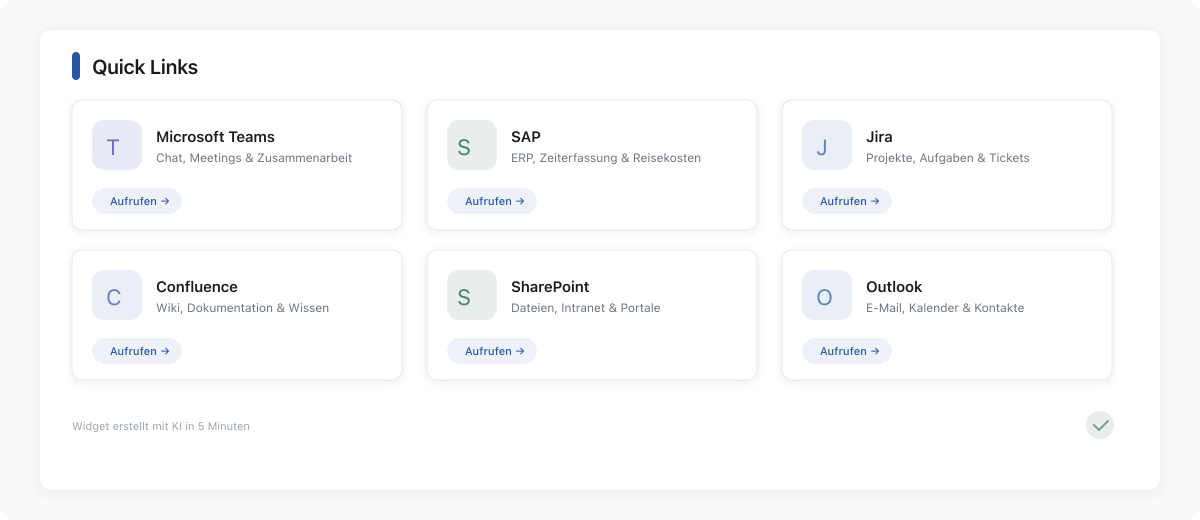
Six cleanly designed tiles, responsive, with icons and hover effects. Ready for your intranet homepage.
What You DON’T Need
- ❌ HTML knowledge
- ❌ CSS or Tailwind
- ❌ A developer
- ❌ An IT ticket
- ❌ Weeks of waiting
What You DO Need
- ✅ A Widget Builder account
- ✅ An AI assistant (Claude Desktop, Cursor, or similar)
- ✅ 5 minutes
- ✅ An idea of what your intranet needs
“What If I Don’t Like the Result?”
Tell the AI. “Make the tiles bigger”, “Use blue icons instead of gray”, “Add another link for the HR portal”. The AI updates the widget, you review, give feedback. Rinse and repeat until you’re happy.
Try It Yourself
Best way to get it? Try it yourself. Our documentation walks you through the setup step by step.
And if you want more: in the next article of this series , we’ll build something more complex together — a lunch menu that your content team can maintain on their own, with a full screenshot walkthrough.