5 Widget Ideas You Can Build in 10 Minutes
Ready-to-Use Prompts
In the first two parts of this series, you’ve seen how to build a Quick Links widget and a lunch menu using the Widget Builder’s AI connection.
Now let’s get practical: here are 5 widget ideas with prompts you can copy and send straight to your AI assistant. Each widget takes less than 10 minutes to build.
1. Quick Links — Your Intranet Toolbox
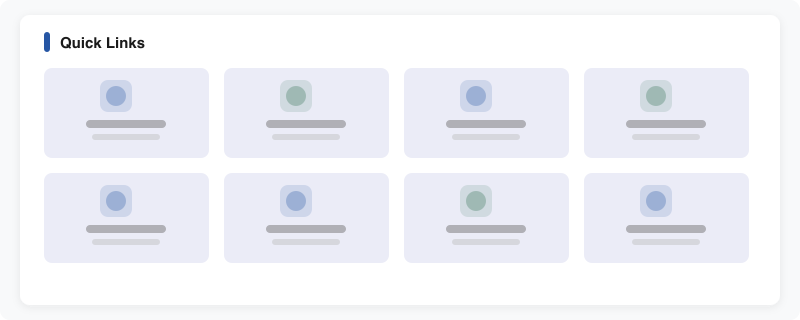
What it’s for: The most important tools and systems in one place. No searching, no asking around, no bookmark mess.
The prompt:
“Create a Quick Links widget with 8 configurable tiles. Each tile has an icon, a title, a one-line description, and a URL. The layout should show 4 columns on desktop, 2 on tablet, and 1 on mobile.”
What you get:
- Responsive tiles with hover effects
- All content stored in the widget template — update anytime via AI assistant
- Clean design that fits any intranet
Typical links: Teams, SAP, Jira, SharePoint, HR portal, expense reports, phone directory, IT helpdesk
2. Lunch Menu — The Daily Intranet Opener
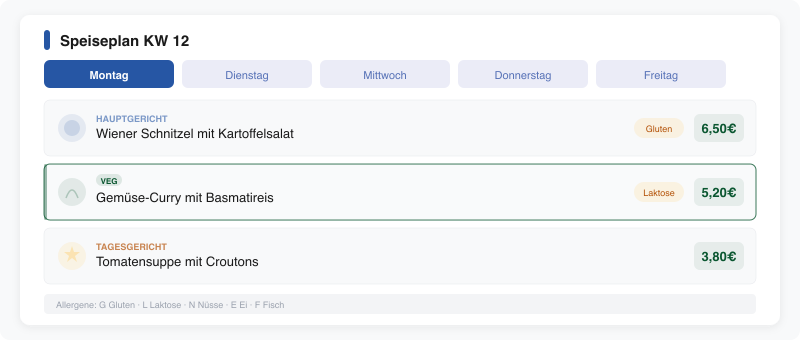
What it’s for: Every morning, employees check what’s for lunch. There’s no better reason to open the intranet.
The prompt:
“Create a lunch menu widget. Weekly view from Monday to Friday. Each day has 3 dishes: main course, vegetarian option, daily special. Each dish has a name, price, and allergen selection (gluten, lactose, nuts, egg, fish). Today should be highlighted automatically.”
What you get:
- Weekday tabs with today highlighted
- Allergen badges with color coding
- Veggie options visually marked
- Update via AI assistant: just tell it the new dishes for the week
Pro tip: Ask the AI for a print view — some cafeterias post the menu as a printout too.
3. Birthdays & Anniversaries — Who’s Celebrating?
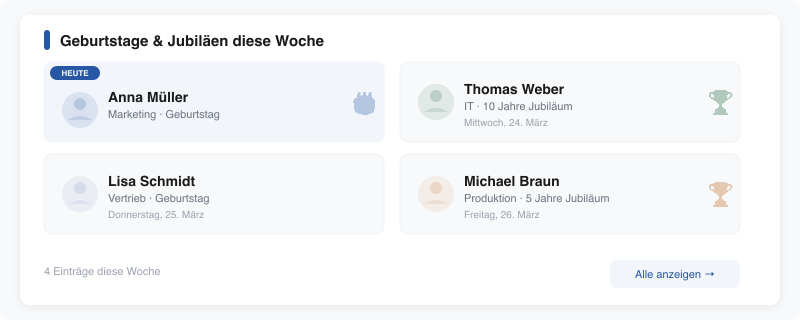
What it’s for: Birthdays and work anniversaries get lost in large companies. This widget puts them front and center — so colleagues actually remember to say happy birthday.
The prompt:
“Create a birthday and anniversary widget. It shows this week’s birthdays and work anniversaries. Each entry has: name, department, date, and occasion (birthday or anniversary with year count). Today’s birthday people should be highlighted. Maximum 10 entries visible, scrollable if more.”
What you get:
- Compact cards with name, department, and occasion
- Today’s birthday highlighted
- Anniversaries with year count (e.g., “10 Years”)
- Scrollable when there are many entries
Good to know: Combined with an HR system, this can be populated automatically. But even maintained manually, it’s a hit.
4. KPI Dashboard — Numbers Everyone Should See
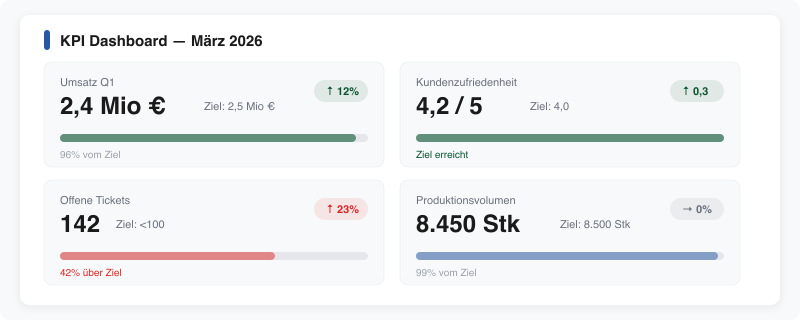
What it’s for: Revenue, customer satisfaction, production volume — metrics that usually rot in Excel files end up on the intranet where everyone actually sees them.
The prompt:
“Create a KPI dashboard widget with 4 configurable metrics. Each metric has: title, current value, target value, unit (%, €, units), and trend (up/down/stable). Show progress as a progress bar. Up = green, down = red, stable = gray. Layout should be 2x2 on desktop and single column on mobile.”
What you get:
- 4 KPI cards with progress bars and trend arrows
- Color coding: green when on target, red when behind
- Fully configurable — titles, values, and units adjustable via AI anytime
- Responsive layout
Use cases: Sales, production, HR (turnover rate), support (ticket resolution time)
5. Onboarding Checklist — Day One Without the Chaos
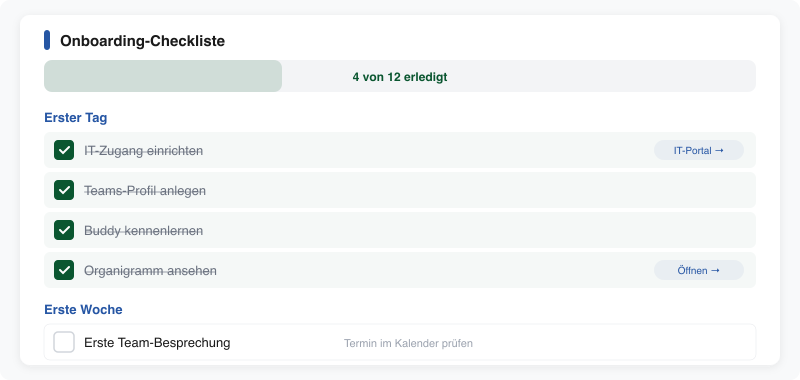
What it’s for: New employees need orientation on day one. Instead of a 20-page PDF, they get an interactive checklist right in the intranet.
The prompt:
“Create an onboarding checklist widget. It shows a list of tasks grouped into categories: ‘First Day’, ‘First Week’, ‘First Month’. Each task has a title, a short description, and an optional link. Show overall progress as a progress bar at the top. The design should be friendly and welcoming.”
What you get:
- Tasks grouped by time period
- Progress bar at the top (e.g., “4 of 12 completed”)
- Optional links per task (e.g., to IT setup guide, org chart)
- Friendly design that doesn’t overwhelm newcomers
Task ideas: Set up IT access, create Teams profile, meet your buddy, explore the org chart, first team meeting invite, find the lunch menu
Which Widget Will You Build First?
All five prompts are ready to copy and try. And if something comes to mind along the way — “Add a search function” or “Make the colors darker” — just tell the AI.
The fastest way to get started:
- Create a Widget Builder account (free)
- Connect your AI assistant (3-minute setup)
- Copy a prompt and send it
In case you missed the first two parts:
- Part 1: Your First Widget in 5 Minutes
- Part 2: From Idea to Widget — Step by Step